
To convert PDF to image online free, open a browser-based converter, upload your PDF, and download each page as a PNG image — no software, no account, and your file never leaves your device. ToolHost’s free PDF to Image tool does exactly this: it renders every page of your PDF right in your browser (using the open-source PDF.js engine at 1.5× scale for sharp results) and gives each page its own download link.
How to Convert PDF to Image, Step by Step
- Open the free PDF to Image tool. It runs entirely in your browser.
- Upload your PDF. The tool reads it locally — the file is never transmitted anywhere.
- Wait for the pages to render. You will see a thumbnail of every page in the PDF (the page shows “Rendering pages, please wait…” while it works).
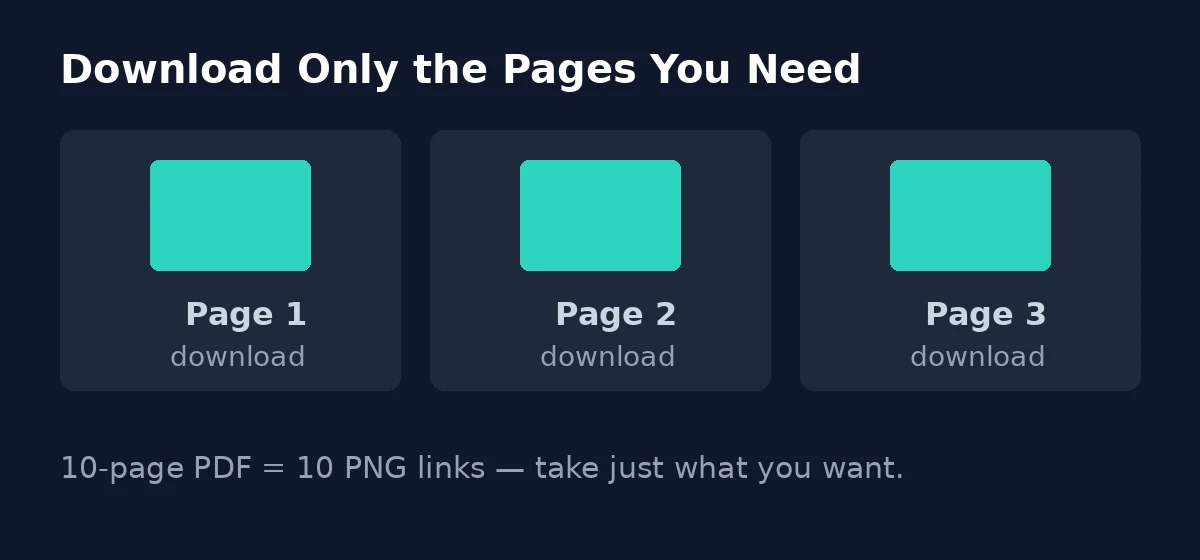
- Download the pages you need. Each page thumbnail has its own download link. Save just the pages you want as PNG images — a 10-page PDF gives you 10 individual PNG downloads.
That is the whole process. There is no batch-ZIP step: you pick pages and download them one by one.
Why This Tool Renders at 1.5× Scale
“1.5× scale” simply means each page is drawn at one-and-a-half times its normal screen size before being saved as a PNG. The trade-off is deliberate and worth understanding:
| Rendering | Sharpness | File size | Best for |
|---|---|---|---|
| 1× (normal) | Good on screen | Smaller | Quick previews, on-screen use |
| 1.5× (this tool) | Noticeably sharper, text stays crisp when zoomed | Somewhat larger | Printing, design work, anything you might enlarge |
Most converters that offer “free” conversions render at 1× to keep their server bills low, so their images blur when you zoom in. Rendering locally at 1.5× costs you nothing extra here — the tool does the work on your device — and it means a signature page, a diagram, or a scanned invoice stays readable when you open the PNG at full size. The slightly larger file is the honest price of that sharpness.
Which Pages Should You Download? A Quick Workflow
Since every page downloads individually, you are never forced to save the whole document. Common workflows:
| Goal | What to download |
|---|---|
| Extract a single signature or stamp page | Just that one PNG — leave the rest |
| Turn a presentation into images for a slide deck | The 4–6 key slides as PNGs |
| Share a chart from a long report | Only the pages with the charts |
| Archive a scanned invoice | Every page, then file them by number |
Tip: if you only need part of the PDF before converting, split the pages out first with our PDF Splitter guide — fewer pages means faster rendering and less clutter in your downloads.
What to Do With the PNGs After Downloading
Converted pages are most useful when they go straight into a workflow. A downloaded signature page pastes cleanly into a Word document or contract template. A chart PNG drops into a slide deck without needing to screenshot and crop. An invoice page attaches to an expense report. Because the PNGs are lossless, you can open one in any basic editor and crop or annotate it without the smearing that lossy formats introduce. And if you ever need the pages back in document form, the reverse trip is one click away — our Image to PDF guide turns image files back into a combined PDF.
What This Tool Does Not Do (Honest Limitations)
- PNG output only. There is no JPG option — the tool saves pages via
canvas.toDataURL('image/png'). If you need JPG images, convert the PNGs afterward; the page output works perfectly as an input to any JPG converter. - No ZIP/batch download. Each page has its own download link. For a 50-page document that means 50 clicks — in practice, most people only need a handful of pages, and the page-by-page flow encourages you to take just those.
- No text extraction. The tool renders what the page looks like — it is not an OCR tool and does not pull out the text layer. Scanned (image-based) PDFs convert fine because only the visual appearance matters, but do not expect editable text out of it.
How the Options Compare
| Option | File uploaded? | Account needed | Cost | Best for |
|---|---|---|---|---|
| Browser-based converter (this tool) | No — rendered on your device | No | Free | Private, sharp PNGs of exactly the pages you need |
| Big online converters | Yes — your PDF goes to their servers | Usually | Free tier, then paid | Whole-document ZIP downloads |
| Desktop software | No | Varies | Mostly paid | Heavy daily workloads |
| Screenshots | No | No | Free | One small, low-quality image — never for print |
Frequently Asked Questions
Will converting my PDF to an image upload my file? No. The PDF to Image tool renders pages with JavaScript in your own browser — the page itself states the file is never transmitted anywhere.
Does it work on scanned PDFs? Yes. The tool renders the visual appearance of each page, so image-based scans convert just as well as text-based PDFs.
Why is the PNG bigger than the original PDF page? Two reasons: the 1.5× rendering scale (more pixels) and PNG’s lossless format (no compression loss). For web use where file size matters, run the result through an image compressor afterward.
Can I get JPG images instead of PNG? Not directly from this tool — output is PNG only. Convert the downloaded PNGs with any PNG-to-JPG tool afterward.
What is the reverse — turning images back into a PDF? That is exactly what our Image to PDF guide covers — the two directions complete each other.
Convert Your PDF Pages Now
You now know the workflow: upload, let the pages render at 1.5×, and download only the PNGs you need. Open the free PDF to Image tool and turn your pages into crisp images in seconds — without sending your document anywhere.