
To resize image online free, open a browser-based resizer, upload your photo, type the new width and height in pixels, and download the result — the image never leaves your device. ToolHost’s free Image Resizer does exactly this: it changes pixel dimensions with the Canvas API, keeps the aspect ratio locked by default so nothing stretches or squashes, and downloads the result as a quality-preserving PNG.
How to Resize an Image Online, Step by Step
- Open the free Image Resizer. It runs entirely in your browser.
- Upload your image. Nothing is transmitted — the image never leaves your device.
- Type the new width and height in pixels. With “Lock aspect ratio” checked (the default), changing one dimension recalculates the other automatically, so the photo keeps its proportions.
- Click “Resize & Download”. Your resized image downloads as a PNG, which preserves quality and transparency.
That is the whole process. Resizing is measured in pixels, not in megabytes — and that distinction matters, as explained below.
A final note on expectations: downsizing is forgiving, upsizing is not. Reducing a photo from 4000px to 800px discards pixels the eye will never miss on a screen, so the result looks identical to the original at display size. Enlarging a small image to a much bigger one does the opposite — the tool must invent pixels that were never there, and the result can look soft or blurry. When you need a large print from a small source, you are better off finding or requesting the original high-resolution file than forcing an upscale.
What Does “Lock Aspect Ratio” Actually Do?
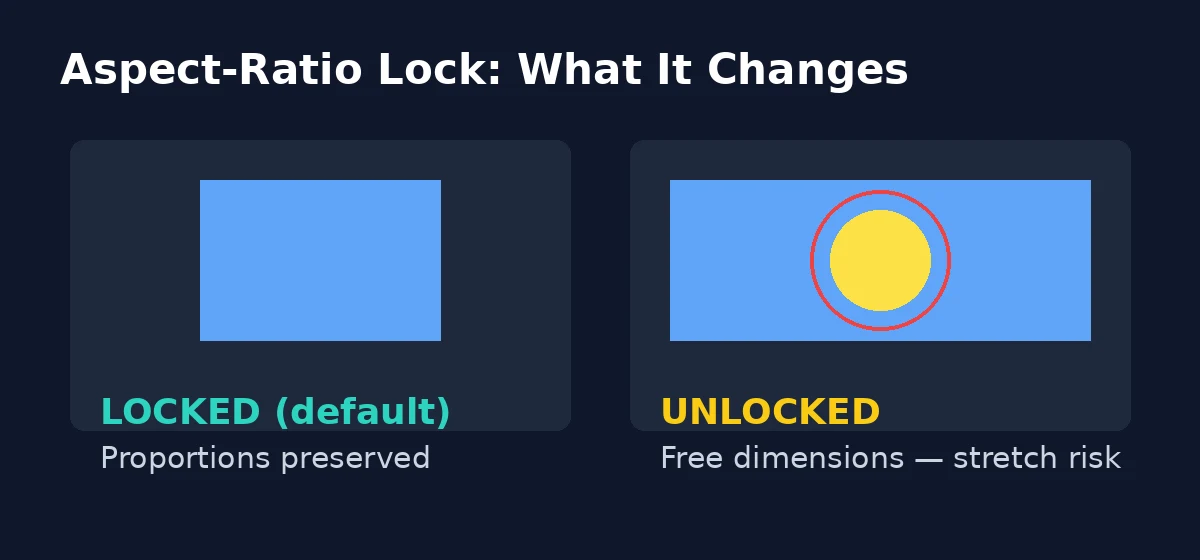
The aspect ratio is the shape of your image — the relationship between width and height. A 4000×3000 photo has a 4:3 ratio, and as long as you keep that ratio, the image simply gets bigger or smaller without distorting. Here is what the checkbox controls:
| Setting | What happens | Result |
|---|---|---|
| Locked (default) | You type a width; the height recalculates proportionally | Smaller/larger image, no distortion |
| Locked (default) | You type a height; the width recalculates proportionally | Smaller/larger image, no distortion |
| Unlocked | You type any width and height freely | Risk of stretched or squashed image |
The tool ships with the lock on because that is what almost everyone wants. Uncheck it only when you deliberately need a non-proportional crop-style change — for example, forcing a square 200×200 profile picture from a landscape photo (in which case faces near the edges may look stretched; check the result before using it).
Resize vs Compress: Which One Do You Need?
This is the most common confusion, and the tool page itself addresses it. The two operations do different jobs:
| Resizer | Compressor | |
|---|---|---|
| Changes | Pixel dimensions (e.g. 4000px → 800px) | File size in kilobytes/megabytes |
| Does not change | The file format or quality per pixel | The pixel dimensions |
| Output | PNG (this tool) | JPG (Article 2’s tool) |
| When to use it | The image is too big for its display slot | The file is too big to upload or email |
The correct order is resize first, then compress. Shrinking a 4000px-wide product photo to an 800px website column already drops most of the file weight; running it through our Image Compressor afterward gives you a small JPG ready for the web. The tool page says exactly this: “if you need a smaller JPG file, run the result through the Image Compressor tool afterward.”
Common-Size Recipes
Verified examples straight from the tool page’s own copy:
| Use case | Dimensions | Notes |
|---|---|---|
| Website content column | 800px wide (height auto) | The tool page’s own example: a 4000px product photo → 800px |
| Profile picture / avatar | 200×200 square | The tool page’s own example; uncheck the lock only if needed |
| Email attachment | ~1200px on the long edge | Keeps full-screen viewing quality without the 4MB original |
| Social post | 1080px wide | Matches most platforms’ display width |
Rule of thumb: resize to the largest size at which the image will actually be seen. Anything bigger is wasted kilobytes.
What This Tool Does Not Do (Honest Limitations)
- PNG output only. “It downloads as a PNG, which preserves quality and transparency.” There is no JPG option — if you need a small JPG file, the tool page itself tells you to run the result through the Image Compressor afterward.
- It does not compress. The tool changes dimensions only; shrinking file size is the compressor’s job (see the resize-vs-compress table above).
- It does not crop. Cropping cuts parts of the image away; this tool scales the whole image. For cutting a region out, you want an image cropper, not a resizer.
How the Options Compare
| Option | Image uploaded? | Account needed | Cost | Best for |
|---|---|---|---|---|
| Browser-based resizer (this tool) | No — stays on your device | No | Free | Quick dimension changes, private |
| Desktop editors | No | Varies | Mostly paid | Heavy editing sessions |
| Big online resizers | Yes — your photo goes to their servers | Usually | Free tier, then paid | Rare, very large batches |
Frequently Asked Questions
Does resizing reduce image quality? Resizing changes pixel dimensions, not quality per pixel — and this Image Resizer downloads as PNG, which is lossless. Downsizing (making an image smaller) never adds visible artifacts; only aggressive upsizing beyond the original size can look soft.
What is the difference between resizing and compressing? Resizing changes dimensions in pixels; compressing changes file size in kilobytes. Need a smaller display box → resize. Need a smaller file to upload → compress. Use them in that order.
Will the resized image keep its transparency? Yes — the PNG output preserves transparency, per the tool page.
Can I resize without stretching the photo? Yes — keep “Lock aspect ratio” checked and the tool recalculates the other dimension for you automatically.
I need a small JPG, not a big PNG. What now? Resize first, then run the PNG through the Image Compressor tool — that is the page’s own recommended workflow, and our compressor guide shows exactly how.
Resize Your Image Now
You now know the workflow, the aspect-ratio lock, and why resize comes before compress. Open the free Image Resizer, type your new dimensions, and download a cleanly resized PNG — in seconds, without uploading anything.