
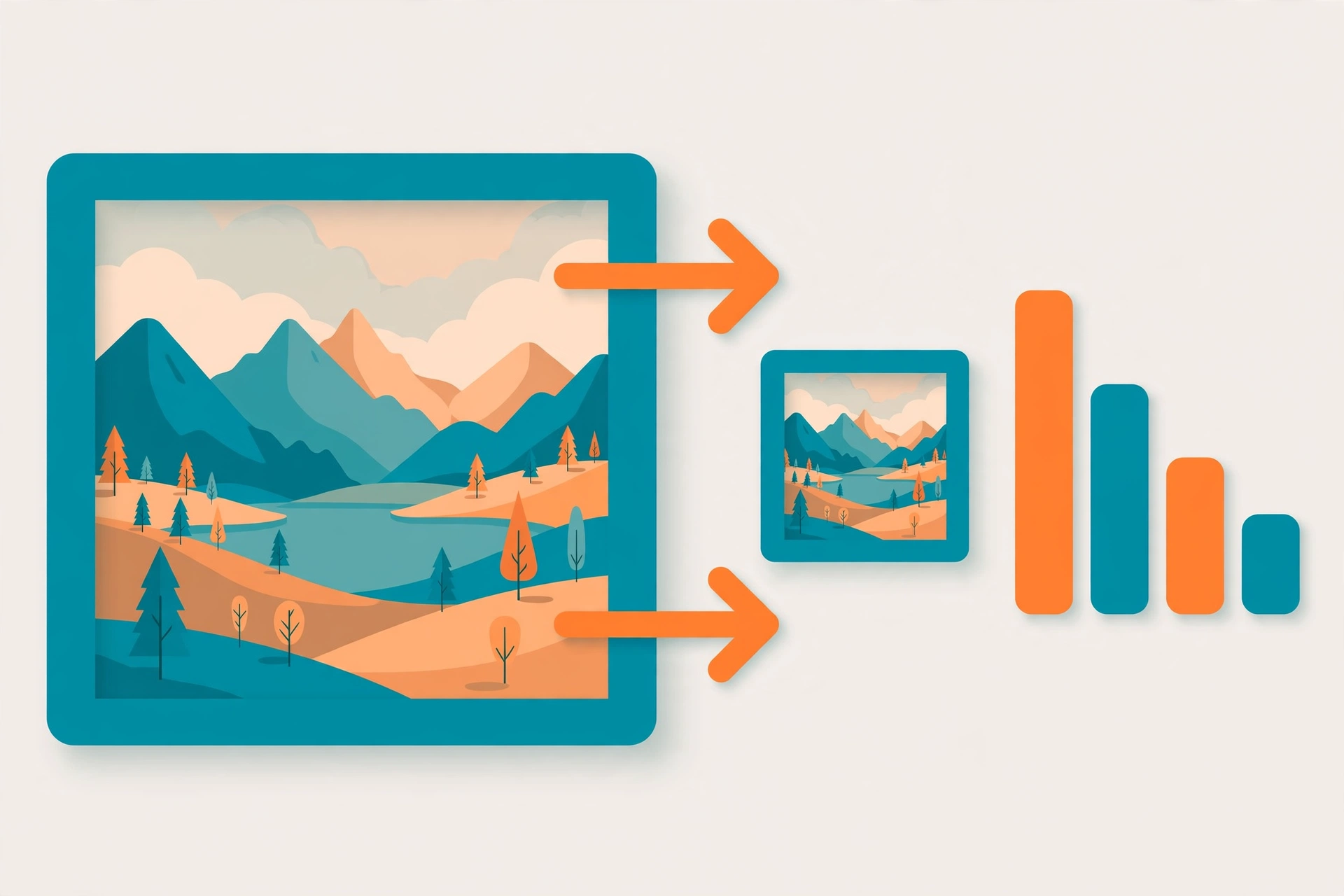
You are filling an online form — a job application, a university admission, an exam registration — and at the photo upload step it rejects your picture: “File size must be less than 50KB.” Your phone photo is 3 MB. Now what?
This is one of the most common everyday problems on the internet, and our free image compressor to 20KB fixes it in less than a minute. This guide shows you exactly how to compress an image to 20KB, 50KB, 100KB or 200KB using a free Image Compressor that runs entirely in your browser — no sign-up, no software, and your photo is never uploaded to a server.
Why Do Forms Ask for Such Small Sizes?
Government portals, job sites, and university forms run on systems that store millions of photos and signatures. Small files keep those systems fast and cheap to run, so they set strict limits. The limits you will most often see are:
- Photo: 100KB – 200KB (sometimes up to 300KB)
- Signature: 10KB – 20KB
- Documents/certificates: 100KB – 200KB per file
A modern smartphone photo is usually 2–5 MB — 20 to 50 times too big. Compression bridges that gap.
How to Use an Image Compressor to 20KB, 50KB or 100KB (Step by Step)
Step 1 — Open the tool. Go to the free Image Compressor and upload your photo (JPG or PNG both work).
Step 2 — Set the quality. The tool has one simple control: a quality slider. Lower quality = smaller file. Use the starting points in the table below for your target size.
Step 3 — Compress and check the size. Click Compress & Download. The tool shows you the new file size and exactly how many kilobytes you saved.
Step 4 — Adjust if needed. Still above the limit? Lower the quality by 10 points and compress again. Much smaller than needed and looking soft? Raise the quality a little. Two or three tries will land you just under your target — that is the sweet spot.
Which Quality Setting Gives Which Size?
For a typical smartphone photo (2–4 MB), these are reliable starting points:
| Target size | Start with quality | Notes |
|---|---|---|
| 200KB | 60–70% | Quality stays almost perfect |
| 100KB | 40–55% | Looks great on screen and in forms |
| 50KB | 25–35% | Slight softness if you zoom in |
| 20KB | 10–20% | Resize the photo first (see below) |
Every photo behaves a little differently — a busy, detailed photo compresses less than a simple one with plain backgrounds — so treat the table as a starting point and use the check-and-adjust loop from Step 4.
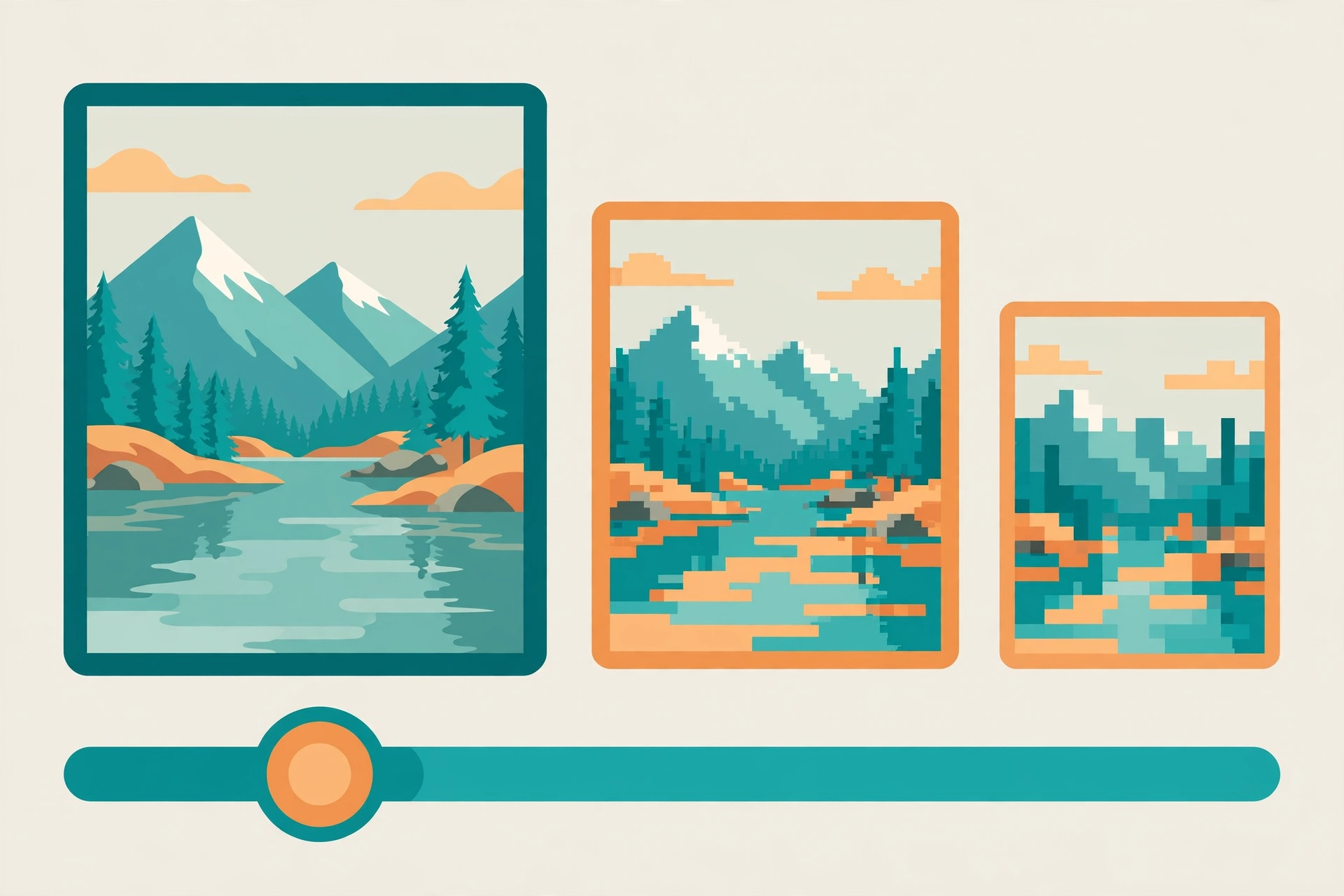
The 20KB Trick: Resize First, Then Compress
At a 20KB target, quality alone is not enough — a full-size 4000-pixel photo squeezed to 20KB turns blocky. The professional trick is to shrink the dimensions first:
- Run your photo through the Image Resizer and set the width to about 600–800 pixels (plenty for forms and signatures).
- Then compress the resized photo at 30–50% quality.
Same target size, noticeably clearer result. This matters most for scanned signatures and ID photos, which must stay readable.
More Tips for Smaller Files
- PNG photo? Convert it. A photo saved as PNG can be 5–10× larger than the same photo as JPG. Run it through PNG to JPG first, then compress.
- Crop the waste. Extra background and margins add kilobytes. Trim them with the Image Cropper before compressing.
- Stay just under the limit. If the form says “less than 50KB”, aim for 45–49KB — maximum quality that still gets accepted.
- Keep your original. Always keep the full-size original file backed up; compression is one-way.
Frequently Asked Questions
How do I compress an image to exactly 20KB? No tool can promise an exact byte size, because the result depends on your photo’s content. The reliable method is the loop: compress, check the size, adjust the quality slider up or down, and compress again until you land just under 20KB. Resizing the dimensions first (600–800 px wide) makes 20KB much easier to reach without ruining the photo.
Will compressing make my photo blurry? At 100KB and above, a normal photo usually looks identical to the original on screen. At 50KB you may see slight softness when zooming in. At 20KB some softness is unavoidable on a full-size photo — which is why resizing the dimensions first gives a much better result.
Why does the same quality setting produce different sizes for different photos? File size depends on dimensions and detail. A photo of a plain wall compresses far more than a photo of a crowd or a tree full of leaves, because there is more unique detail to store.
Is it safe to compress passport or ID photos with an online tool? With this Image Compressor, yes — the compression happens locally in your browser using JavaScript. Your photo never leaves your device and is never stored anywhere.
Should I upload JPG or PNG to forms? Almost always JPG. It is much smaller for photos, and virtually every form accepts it. Note that this compressor outputs JPG — which also means transparent PNG backgrounds are not preserved.
Final Words
Hitting an exact KB limit is not about luck — it is one slider and a 30-second loop: compress, check, adjust. Start with the quality table above, resize first for the tiny 20KB targets, and you will never be stuck at a form’s photo-upload step again. Try it now on the free Image Compressor.
Pingback: How to Merge PDF Files Online Free — Combine PDFs in Seconds
Pingback: Image to PDF — Convert JPG & PNG Images to PDF Online Free
Pingback: Resize Image Online Free — Change Dimensions Without Losing Quality
Pingback: Convert JPG to PNG Online Free — Without Losing Quality