
To convert images to PDF online free, upload your JPG or PNG photos, check the page order, and click “Convert to PDF & Download” — the images are combined into a single PDF on your device. ToolHost’s free Image to PDF tool does exactly this: everything runs in your browser, nothing is uploaded to a server, and there is no sign-up or software to install.
How to Convert Images to PDF, Step by Step
- Open the free Image to PDF tool. It runs entirely in your browser — your photos never leave your device.
- Upload your images. Click the file picker and select one or more PNG or JPG files. You can mix both formats in the same batch — the tool detects each file’s format automatically.
- Check the page order. The tool shows a list of the images you added. They go into the PDF in upload order, so if the order matters, select your files in the right sequence. Made a mistake? Each image in the list has a Remove button, so you can drop one without starting over.
- Click “Convert to PDF & Download”. The tool assembles every image into a single PDF and downloads it immediately.
That is the whole process — a phone full of receipt photos becomes one tidy expense-report PDF in under a minute.
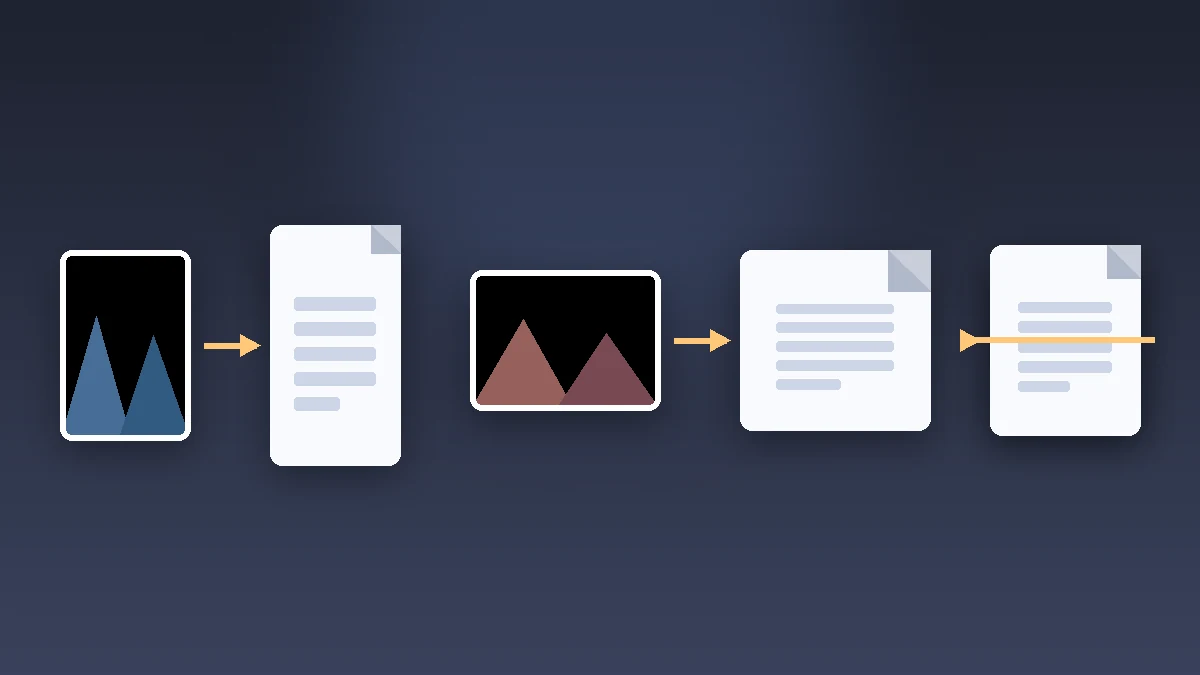
How Pages Are Sized (And Why This Matters)
Most converters force your images onto standard A4 or Letter pages, stretching them or padding them with white margins. This tool does the opposite: each page is sized to match its source image exactly. A portrait photo becomes a portrait page, a landscape screenshot becomes a landscape page — the image is never distorted to fit a preset page size.
| Approach | How pages look | Trade-off |
|---|---|---|
| This tool (image-sized pages) | Every page matches its image — no stretching, no white borders | Pages are not a uniform size, which some printers expect |
| Standard converters (forced A4/Letter) | Uniform page size throughout the document | Images get stretched or padded with margins to fit |
If you need uniform A4 or Letter pages afterwards — for a printer or a strict submission template — that is a manual adjustment in a PDF editor after downloading. For reading, emailing and archiving, image-sized pages are simply the better default.
Where This Is Commonly Needed: Use-Case Recipes
| Job | What to do | Order tip |
|---|---|---|
| Expense report from receipt photos | Photograph each receipt, upload the batch, convert | Upload in date order — the PDF follows your upload order |
| Signed form photographed page by page | Photograph every page of the signed form in sequence | Upload page 1 first, page 2 second, and so on |
| Screenshots for a submission | Collect the screenshots, upload them together | Put the most important screen first — it becomes page 1 |
| Phone photos of certificates or documents | Photograph front and back of each document | Pair front-then-back for each document so the PDF reads naturally |
One money-saving habit: if your photos are large, run them through our Image Compressor before converting. Smaller source images mean a much smaller PDF — a batch of 4 MB phone photos can shrink to a few hundred kilobytes per page with no visible difference.
What This Tool Does Not Do (Honest Limitations)
- PNG and JPG only. The file picker accepts exactly these two formats (mixing them in one batch is fine). Anything else — HEIC, WebP, TIFF — needs converting to JPG or PNG first. Most phones can save or export as JPG directly.
- No page resizing to A4/Letter. As explained above, pages keep their image dimensions. If a submission strictly requires standard page sizes, adjust the PDF afterwards in an editor.
- Order is upload order. There is no drag-to-reorder in the list — but the Remove button lets you drop a misplaced image and re-add it where you want it, so fixing the order takes seconds.
These are deliberate simplicity trade-offs, and for the everyday case (a handful of photos into one PDF) nothing here gets in your way.
How the Options Compare
| Option | Images uploaded to a server? | Account needed | Cost | Best for |
|---|---|---|---|---|
| Browser-based converter (this tool) | No — assembled on your device | No | Free | Quick batches, private photos and documents |
| Big online converters | Yes — your images go to their servers | Often | Free tier, then paid | Uniform A4 pages, heavy batch features |
| Phone/desktop PDF apps | No | Sometimes | Mostly paid | Daily workflows with built-in scanning |
The privacy win is the same as with our other PDF tools: photos of receipts, IDs or signed documents are assembled locally — a PDF built on your machine, never transmitted anywhere.
Frequently Asked Questions
Can I mix PNG and JPG images in one PDF?
Yes. The tool accepts both formats in the same batch and detects each file’s type automatically — just select them all together.
Will my photos be resized or stretched?
No. Each page is sized to match its source image exactly, so nothing is stretched or distorted. If you need standard A4 or Letter pages, adjust the downloaded PDF in an editor afterwards.
Are my images uploaded to a server?
No. The PDF is assembled entirely in your browser with a client-side JavaScript library — your photos are never sent anywhere.
How do I control which image becomes page 1?
Images go into the PDF in upload order, so select the files in the sequence you want. If you add one out of order, use its Remove button and re-add it.
Why is my PDF so large?
Phone photos are often several megabytes each. Compress them first with our Image Compressor — the resulting PDF can be a fraction of the size with no visible quality loss.
Convert Your Images Now
You now know the four-step process, how page sizing works, and the honest limits (PNG/JPG only, upload order is page order). Open the free Image to PDF tool, upload your photos in the right order, and download your single PDF — in seconds, with nothing uploaded anywhere.