
CSS box-shadow is the property that adds a shadow to any HTML element — a card, button, image or modal — using up to six values: horizontal offset, vertical offset, blur, spread, color and the optional inset keyword. One line of CSS is all it takes, and you never have to write it by hand: the free CSS Box Shadow Generator on ToolHost lets you drag sliders, preview the shadow live and copy ready-to-paste CSS.
What Is CSS box-shadow?
box-shadow is a CSS property that draws a shadow in the shape of an element’s box. The shadow automatically follows the element’s border-radius, so a rounded card gets a rounded shadow. A shadow is purely visual: it does not take up layout space and does not change the element’s size or position. If you write no color, the shadow uses the element’s text color. The default value is none — no shadow at all.
box-shadow Syntax, Value by Value
Every box shadow is built from the same parts. The four length values must appear in this fixed order — offset-x, offset-y, blur, spread — while the color and the inset keyword can go at the start or the end.
| Value | What it controls | Key facts |
|---|---|---|
| offset-x | Horizontal position of the shadow | Positive moves it right, negative moves it left |
| offset-y | Vertical position of the shadow | Positive moves it down, negative moves it up |
| blur-radius | How soft and spread-out the shadow edge is | 0 = hard, sharp edge; larger = softer and lighter; cannot be negative |
| spread-radius | How much the shadow grows or shrinks | Positive expands it, negative shrinks it |
| color | The shadow’s color | Any CSS color; rgba() adds transparency; defaults to the element’s text color |
| inset | Optional keyword | Draws the shadow inside the box instead of outside |
A minimal shadow needs only the two offsets: box-shadow: 10px 10px; Everything else is optional and defaults to 0 or the text color, which is why the generator tool is so useful — it shows you exactly what each value does as you move it.
How Do You Create a Box Shadow Without Writing Code?
Use the free CSS Box Shadow Generator and follow these steps:
- Set the offsets. Two sliders control horizontal and vertical offset, from −50px to +50px. These decide where the light seems to come from.
- Add blur. The blur slider runs from 0 to 100px. Low values look crisp and close; high values look soft and distant.
- Adjust spread. The spread slider runs from −30px to +30px, growing or shrinking the shadow before the blur is applied.
- Pick a color and opacity. Choose any shadow color, then set opacity with its own slider — the tool’s default is black at 30%, the classic soft-shadow recipe.
- Try inset. One checkbox flips the shadow inside the box for a pressed-in effect.
- Copy the CSS. The tool writes the finished rule for you — the default settings, for example, produce
box-shadow: 10px 10px 20px 0px rgba(0, 0, 0, 0.30);— and the Copy CSS button puts it on your clipboard.
Everything runs in your browser. Nothing is uploaded, and there is nothing to install.
8 Copy-Paste Box Shadow Examples
These eight shadows cover almost everything a website needs. Paste any of them into your stylesheet as-is, then fine-tune the values in the generator.
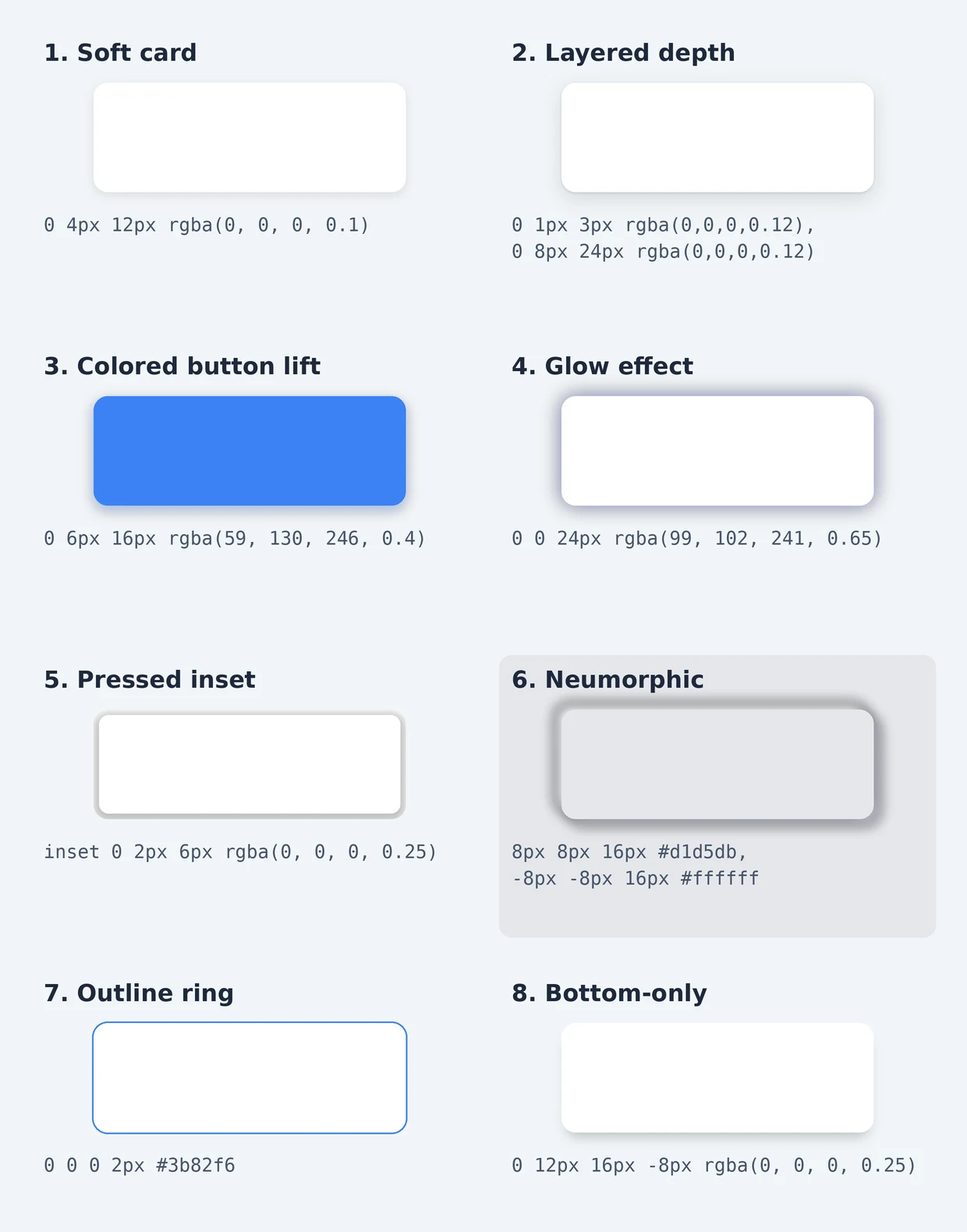
1. Soft card shadow — the everyday default for cards and panels:
box-shadow: 0 4px 12px rgba(0, 0, 0, 0.1);2. Layered depth shadow — two shadows stacked (a tight contact shadow plus a wide soft one) look far more realistic than one:
box-shadow: 0 1px 3px rgba(0, 0, 0, 0.12), 0 8px 24px rgba(0, 0, 0, 0.12);3. Colored button lift — a tinted shadow under a blue button makes it feel raised and clickable:
box-shadow: 0 6px 16px rgba(59, 130, 246, 0.4);4. Glow effect — zero offsets with a large blur create an even glow on every side:
box-shadow: 0 0 24px rgba(99, 102, 241, 0.65);5. Pressed inset shadow — for inputs and toggles that should look pushed in:
box-shadow: inset 0 2px 6px rgba(0, 0, 0, 0.25);6. Neumorphic shadow — a dark shadow bottom-right plus a light shadow top-left, on a matching grey background:
box-shadow: 8px 8px 16px #d1d5db, -8px -8px 16px #ffffff;7. Outline ring — blur 0 with 2px spread draws a crisp ring, handy for focus states:
box-shadow: 0 0 0 2px #3b82f6;8. Bottom-only shadow — a negative spread shrinks the shadow so only the bottom edge shows:
box-shadow: 0 12px 16px -8px rgba(0, 0, 0, 0.25);Pair these shadows with a gradient background from our CSS gradient guide and a card design is complete. When the stylesheet grows, run it through the CSS Minifier before publishing — shadows included, it will be noticeably smaller.
What Is the Difference Between Inset and Outset Shadows?
An outset shadow — the default — is drawn outside the element, as if the box floats above the page and blocks light. An inset shadow is drawn inside the element’s border, clipped to the padding box, as if the content is pressed into the surface. Use outset shadows for cards, buttons and modals that should feel raised; use inset shadows for form fields, wells and active toggle states that should feel recessed.
Can You Stack Multiple Shadows on One Element?
Yes. Write two or more shadows separated by commas, and the browser draws all of them. The first shadow in the list is painted on top of the others — the same stacking order as text shadows. Stacking is the secret behind realistic depth (example 2 above) and effects like the neumorphic pair (example 6), where a light and a dark shadow work together.
Do Box Shadows Slow Down Your Page?
A static box shadow costs almost nothing. The risk appears when a very large blur radius has to be repainted constantly — during scrolling or an animated hover on a low-end phone, an oversized blurred shadow can cause visible jank. Three habits keep shadows cheap: keep blur values modest (most UI shadows need 24px or less), animate transform and opacity for hover-lift effects instead of animating the shadow itself, and test the page on a real phone. If a shadow color also needs to stay readable against text, check the pairing with the ratios in our WCAG contrast guide.
Common Box Shadow Mistakes
- Pure black at full opacity.
rgba(0, 0, 0, 1)looks like a printer smudge. Real shadows are transparent — 10–30% opacity is the working range. - One giant shadow on everything. If every element floats at the same height, nothing looks raised. Reserve strong shadows for elements that truly sit above the page, like modals.
- Trying a negative blur. Blur cannot be negative; the declaration is simply invalid. Use spread to shrink a shadow instead.
- A shadow that gets cut off. Shadows do not expand the layout, so a parent with
overflow: hiddenor tight spacing clips them. Give the element margin or the parent padding. - Guessing values one keystroke at a time. Edit–refresh–repeat is slow; dragging sliders with a live preview gets the same result in seconds.
Frequently Asked Questions
What is the default box-shadow value?
The default is none, which means no shadow. Every element starts with no shadow until you set the property.
How many shadows can one element have?
As many as you list. Separate each shadow with a comma; the first one is drawn on top. Two layers handle most realistic effects.
Why does my shadow not follow my rounded corners?
It does — box-shadow always follows border-radius. If your shadow looks square, the radius is probably on a parent or child element instead of the element carrying the shadow.
What is the difference between box-shadow and drop-shadow()?
box-shadow follows the element’s rectangular box (including its rounded corners). The drop-shadow() filter follows the element’s actual visible shape — the alpha outline of a transparent PNG, for example. Use box-shadow for cards and buttons, drop-shadow() for irregular images and icons. The full syntax for both is documented in MDN’s box-shadow reference.
Can I put a shadow on text with box-shadow?
No. box-shadow applies to the element’s box. For letter-shaped shadows, use the separate text-shadow property.
Create Your Shadow Now
You now know what every value does, how inset differs from outset, and how professionals stack two shadows for realistic depth. Open the free CSS Box Shadow Generator, drag the sliders until the preview looks right, and copy the CSS — your next card, button or modal will look properly finished.