
To convert PNG to JPG online free, upload your PNG to a converter, click convert, and download the JPG — the file usually gets much smaller while the image itself looks the same. ToolHost’s free PNG to JPG tool does exactly this in your browser: it converts at a fixed 92% quality level, which the tool page itself says is “rarely visible to the eye.” One thing to know before you start: transparent areas in your PNG will become solid white — JPG has no way to store transparency, and this guide explains what that means for your image.
How to Convert PNG to JPG, Step by Step
- Open the free PNG to JPG tool.
- Upload your PNG image. The file is processed right on your device — it is never uploaded anywhere.
- Click Convert. The tool re-encodes your image as a JPG at 92% quality.
- Download the JPG. Save the result — same picture, smaller file.
That is the whole workflow. The conversion changes the format and usually the file size, not the picture you see.
What Happens to Transparent Areas? (Read This First)
This is the single most important thing this article can tell you, and it comes straight from the tool page’s own FAQ: transparent areas become solid white. The page states it plainly — since the JPG format has no way to represent transparency, “transparent areas become solid white in the resulting JPG.”
So if your PNG logo sits on a transparent background, the converted JPG will have that same logo on a white background. The page is honest about the implication: “If your PNG has a transparent background and you need to keep it transparent, keep it as PNG, or convert to a different transparent-friendly format instead.”
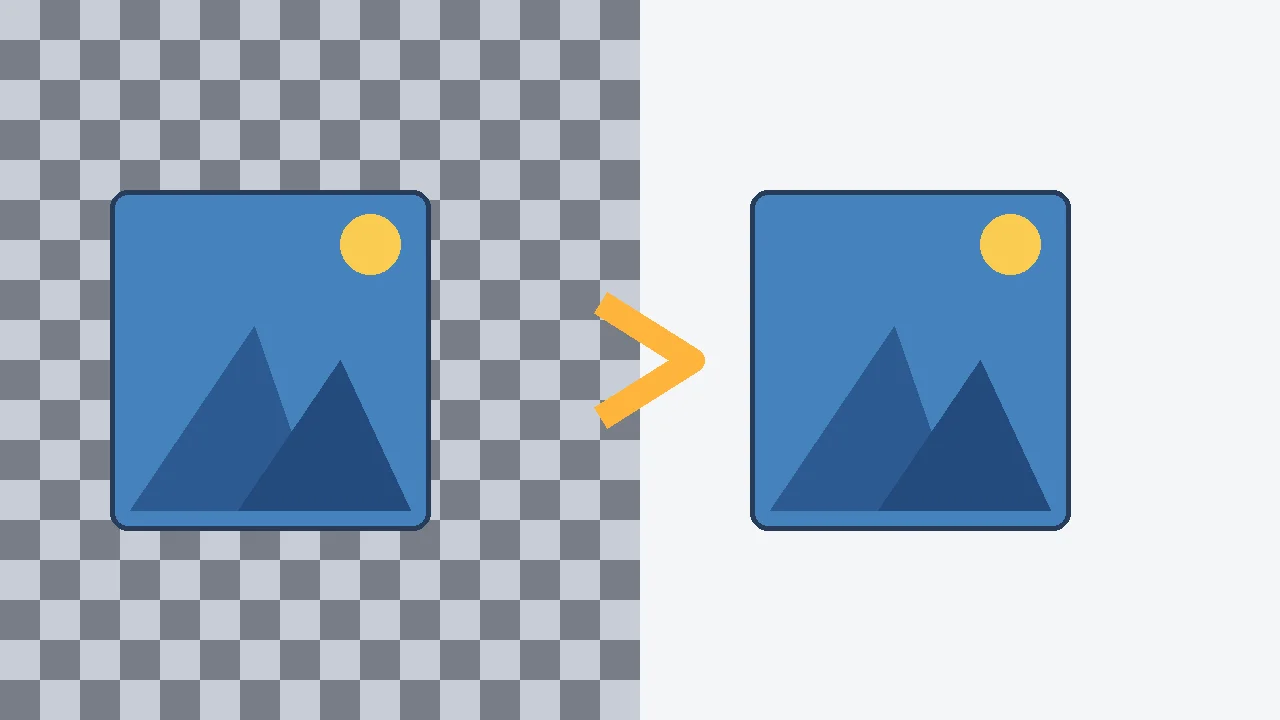
Why does this matter? Transparency is data stored inside the image file — PNG has a channel for it, JPG does not. Conversion cannot create or preserve what the destination format cannot hold. For photos with solid backgrounds, this changes nothing. For logos, icons, and graphics that rely on a see-through background, converting to JPG is simply the wrong move — keep the PNG.
What “92% Quality” Actually Means
JPG is a lossy format: it saves space by permanently discarding a small amount of image detail. The quality percentage controls how aggressive that discarding is — 100% keeps almost everything (but saves little space), 50% shrinks the file a lot (but the damage becomes visible).
This tool uses a fixed 92% quality level — and that number is the whole story. According to the tool page, at this level “the difference is rarely visible to the eye.” In practice, 92% is the sweet spot most converters settle on: high enough that photos look identical, low enough that the file shrinks dramatically. You cannot adjust the quality on this tool — the page offers no quality slider — but for the job it does, the fixed setting removes a decision you would probably make wrong anyway. The JPEG format itself has worked this way for decades, and 90–95% is the standard range for “visually lossless” results.
When to Convert — and When Not To
| Situation | Convert to JPG | Keep PNG |
|---|---|---|
| Photo that needs to load fast or stay under a file-size limit | ✓ — usually much smaller | — |
| Web form or ad platform that only accepts JPG | ✓ | — |
| Older software that expects JPG | ✓ | — |
| Image has a transparent background you need to keep | ✗ — it will turn white | ✓ |
| Logo or graphic with sharp edges and text | Only if the destination forces JPG | ✓ — lossless keeps edges crisp |
| You will edit and re-save the image many times | ✓ if final delivery is JPG | ✓ — re-saving JPGs degrades them each time |
| You need the opposite direction | See our JPG to PNG guide | — |
| File is small enough already | No need | No need |
The practical takeaway: convert for size and compatibility, not as a default. And if you ever need to go the other way — JPG back to PNG — our guide to converting JPG to PNG covers the reverse trip, including the mirror-image honesty point: converting to PNG cannot add transparency back either.
PNG vs JPG: The Size Story
| PNG | JPG (from this tool) | |
|---|---|---|
| Transparency support | ✓ full | ✗ becomes white |
| Compression type | Lossless | Lossy (92% quality) |
| Typical file size | Larger | Smaller |
| Best for | Logos, graphics, anything needing transparency | Photos, uploads with size limits |
| Quality after conversion | N/A | Rarely visibly different from the PNG |
Why is the JPG smaller? Lossless compression (PNG) must preserve every pixel exactly, which limits how far it can shrink. Lossy compression (JPG) is allowed to throw away detail the eye barely notices — at 92%, that trade-off is almost always worth it for photographs.
Combine Conversion With Compression and Resizing
Conversion alone does not always shrink a file enough. The typical workflow is: resize → convert → compress.
- If the image is also too large in dimensions, resize it first — resize changes dimensions; conversion changes format; each tool does one job well.
- If the JPG is still too heavy after converting, compress it further — the compressor is built for hitting exact targets like 20KB, 50KB, or 100KB.
That three-step chain — resize, convert, compress — covers almost every “my image is too big to upload” situation.
What This Tool Does Not Do (Honest Limitations)
- No transparency preserved. Worth repeating because it is the #1 surprise: the tool converts the format; transparent areas are filled white automatically, and there is no background-color picker on the page.
- No adjustable quality. The quality is fixed at 92% — no slider, no choice. For most photos this is the right setting anyway.
- No batch conversion. One image per conversion. If you have a folder of PNGs, convert them one at a time or use desktop batch software.
Frequently Asked Questions
Will converting PNG to JPG reduce the file size? Almost always, yes. PNGs tend to be larger because lossless compression is less aggressive. Converting to JPG at 92% quality typically produces a noticeably smaller file — and the visual difference is rarely noticeable.
What happens to a PNG with a transparent background? The transparent areas become solid white. The tool page’s FAQ confirms this: JPG has no way to represent transparency. If you need transparency, keep the PNG.
Is my image uploaded to a server? No. The tool page states the conversion happens “entirely in your browser via the Canvas API, so your image is never uploaded anywhere.” Your image never leaves your device.
Will the JPG look worse than the PNG? Rarely, at 92% quality. The page’s own words: “the difference is rarely visible to the eye.” Sharp-edged graphics and text can show slight softening — for those, PNG stays the better format.
Can I convert JPG back to PNG? Yes — and we have a full guide for it: how to convert JPG to PNG. Note that converting back does not restore the smaller size or recreate transparency.
Convert Your PNG Now
You now know the workflow, the 92% quality story, and the transparency truth. Open the free PNG to JPG tool and shrink your image in seconds — with honest expectations about what the JPG will and won’t give you.