
To convert JPG to PNG online free, open a converter, upload your JPG, and download the PNG result — the pixel content stays exactly the same, only the file format changes. ToolHost’s free JPG to PNG tool does exactly this: it re-packages your image from the lossy JPG format into the lossless PNG format. One truth to know before you start: converting does not add transparency and does not restore quality — the page’s own FAQ says so, and this guide explains why.
How to Convert JPG to PNG, Step by Step
- Open the free JPG to PNG tool.
- Upload your JPG image. The tool accepts the file from your device.
- Click Convert. The tool re-encodes your image into the PNG format.
- Download the PNG. Save the result — pixel content unchanged, new format ready.
That is the whole process. The conversion changes the container, not the content.
The Transparency Myth (Read This Before Converting)
This is the single most important thing this article can tell you, and it comes straight from the tool page’s own FAQ: a converted PNG will not have a transparent background. The FAQ states it plainly — since the original JPG has no transparency data, the PNG result will have a normal solid background, matching the JPG exactly.
Why? Transparency is data stored in the image — PNG has a channel for it, JPG does not. Converting formats cannot invent data that was never there:
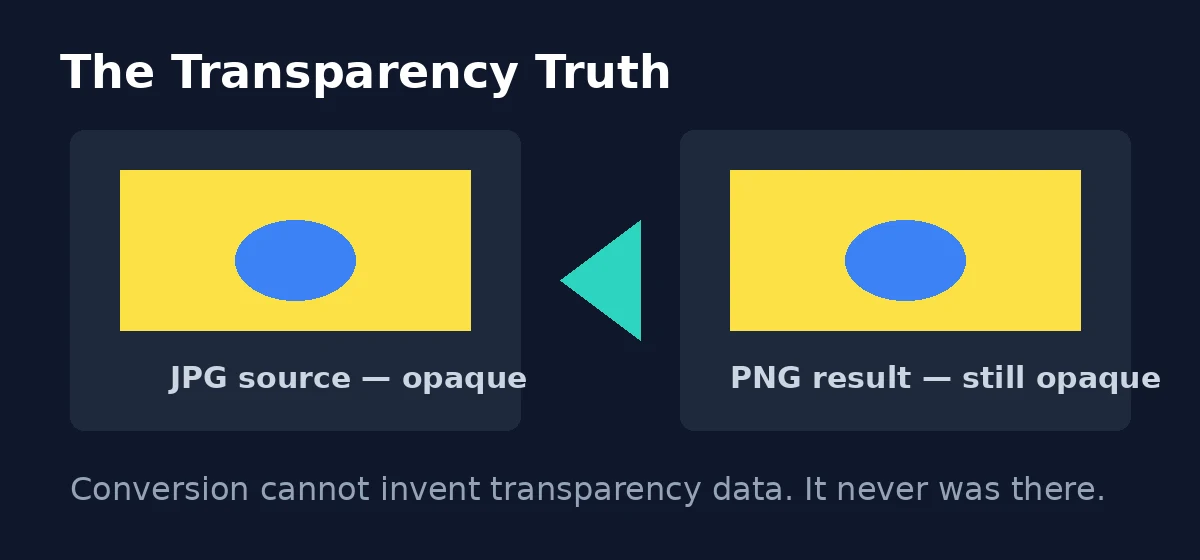
So: if your JPG photo has a white background, your PNG will have a white background too — just stored losslessly. True transparency only appears when the source already has it, for example when you export from design software with transparency enabled.
What Converting Actually Changes vs What It Doesn’t
| What you get | Reality |
|---|---|
| New file format | ✓ JPG becomes PNG |
| Same pixels | ✓ pixel content is identical |
| Transparent background added | ✗ impossible — JPG stores no transparency data |
| Lost quality restored | ✗ JPG’s lossy compression already discarded that detail; conversion only repacks what remains |
| Smaller file | ✗ usually the opposite — PNG is lossless, so it is often larger than the JPG it came from |
The practical takeaway: convert for compatibility, not for quality. If you only want a smaller file, conversion is the wrong move — compress the JPG instead.
When to Convert (Decision Table)
| Situation | Keep JPG | Convert to PNG |
|---|---|---|
| Web photo, just needs to load fast | ✓ | — |
| Icon generator / design software that only accepts PNG | — | ✓ |
| Further editing in PNG-friendly software | — | ✓ |
| You want transparency | Only if the source already has it | Only if the source already has it |
| You want a smaller file | ✓ (or compress it) | ✗ — PNG is usually bigger |
| You want “better quality” from an existing JPG | ✓ — nothing to gain | ✗ — lost detail does not come back |
| Your camera/phone saves as JPG and you archive originals | ✓ — JPG is the lighter archive format | ✗ — converts add bulk for no benefit |
| You need to email a photo that must open anywhere | ✓ — JPG opens on every device and email client | Only if the recipient’s tool rejects JPG |
Why Do Websites and Software Ask for PNG Anyway?
The answer is rarely about looks — it is about predictability. PNG is lossless, which means a design tool can open it, re-save it ten times, and never introduce new compression artifacts. Icons and logos often ship as PNG because the format handles sharp edges and text better than JPG’s lossy compression, which tends to smear hard edges with ringing artifacts. Some pipelines also standardize on PNG so their processing steps (thumbnails, crops, watermarks) all start from an identical-quality source. None of this means PNG is “higher quality” in the sense of more detail — it just means the format survives processing without degrading further. Understanding why the PNG is requested tells you whether conversion is the right call or whether you should go back to the original source file and export a fresh PNG from there instead.
What This Tool Does Not Do (Honest Limitations)
- No transparency is created. Worth repeating because it is the #1 misconception: the tool converts the format; it cannot add what the source lacks.
- No quality improvement. The conversion is a lossless re-pack of data that was already lossy-compressed. It preserves what is there — it never enhances.
- No batch conversion. One image per conversion. If you have a folder of JPGs, convert them one at a time or use desktop batch software.
How the Options Compare
| Option | Cost | Account needed | Best for |
|---|---|---|---|
| Browser-based converter (this tool) | Free | No | One-off JPG→PNG conversions, right now |
| Desktop editors | Mostly paid | Varies | Batch conversions and editing together |
| Big online converters | Free tier, then paid | Usually | Rare bulk jobs |
Frequently Asked Questions
Will my converted PNG have a transparent background? No — the tool page’s FAQ confirms this. Since a JPG contains no transparency data, the PNG result keeps the same solid background as the original.
Does converting JPG to PNG improve quality? No. JPG compression permanently discarded some detail when the JPG was created; converting to PNG losslessly preserves what remains but cannot restore what was lost.
Will the PNG file be bigger? Usually yes — PNG’s lossless compression is less aggressive than JPG’s lossy compression, so the same image often weighs more as a PNG.
When should I convert JPG to PNG? When the destination demands PNG: icon generators, design software, or further editing in PNG-friendly tools. Never convert just to “improve” a photo.
Should I resize before converting? Yes — if the image is also too large, resize it first and then convert. Resize changes dimensions; conversion changes format; each tool does one job well.
Convert Your JPG Now
You now know the workflow, the transparency truth, and when conversion actually helps. Open the free JPG to PNG tool and convert your image in seconds — with honest expectations about what the PNG will and won’t give you.
Pingback: Convert PNG to JPG Online Free — Reduce Image Size at 92% Quality