
To merge PDF files online free, open a browser-based merger, add your PDF files in the order you want them, and click merge — the tool combines them into one document. ToolHost’s free PDF Merger does exactly this: files are combined in your browser in the order you list them, nothing is uploaded to a server, and there is no sign-up or software to install.
What Does Merging a PDF Mean?
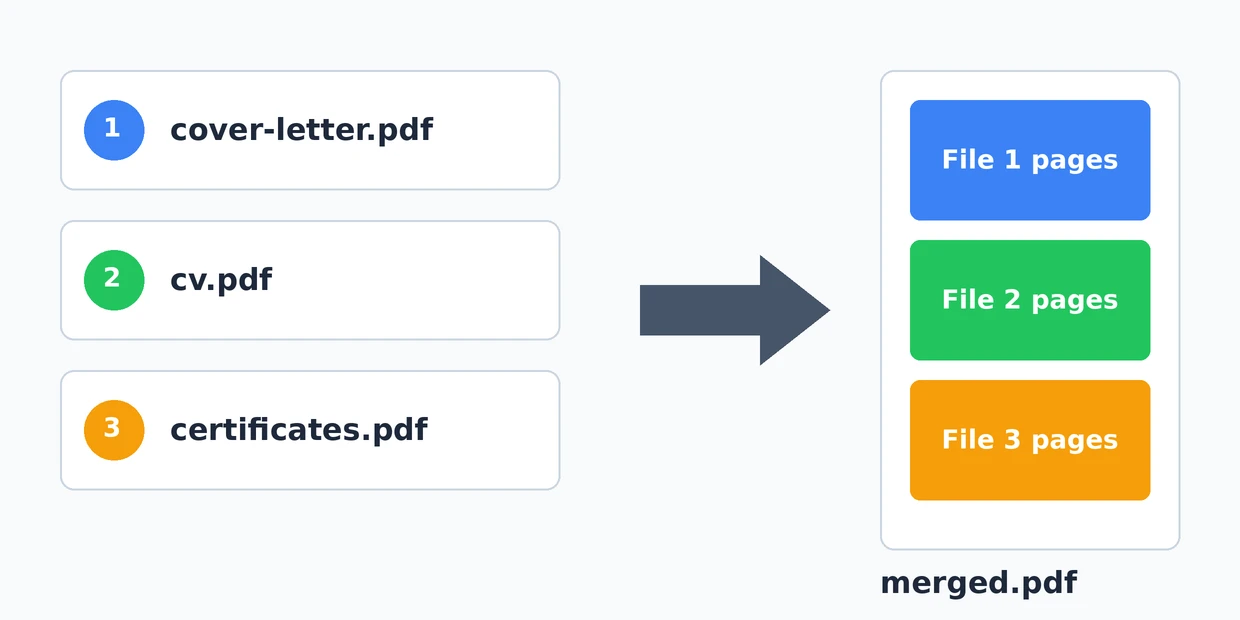
Merging PDFs means joining two or more separate PDF files into a single PDF document, one file’s pages after another’s. The pages themselves are not changed — text, images and layout are copied exactly as they are in the originals. PDF (Portable Document Format) has been the standard format for shareable documents since the 1990s, and its history is covered in Wikipedia’s article on PDF. Merging is the opposite of splitting, which takes one PDF apart into separate files.
How to Merge PDF Files Online, Step by Step
- Open the free PDF Merger. It runs entirely in your browser.
- Add your files in the order you want them. Click the file picker and select your PDFs — the first file you add becomes the first pages of the merged document.
- Fix the list if needed. Every file you add appears in a list. Click Remove next to any file to take it out; to change the order, remove and re-add files in the sequence you want.
- Click “Merge PDFs & Download”. The tool combines the files in list order and your browser downloads the single merged PDF.
That is the whole process. There is no account, no watermark and no waiting for an upload or an email link — the merging happens on your own device.
How Does the Merge Order Work?
Files are combined in exactly the order they appear in the list: the first file’s pages come first, then the second file’s pages, and so on. There is no automatic sorting by name or date, which is why the Remove-and-re-add step matters when sequence counts — for example, a cover letter must come before the CV it introduces, not after it.
Is It Safe to Merge PDFs Online?
With this PDF Merger, yes — because your files never leave your device. The merging is done by JavaScript running in your own browser, not by a server you upload documents to. That distinction matters when PDFs contain contracts, ID documents, bank statements or client files. Many well-known merging websites work the other way: you upload your files to their servers, wait, and download the result. The three approaches compare like this:
| Method | Files uploaded? | Install needed | Cost | Order control |
|---|---|---|---|---|
| Browser-based merger (this tool) | No — files stay on your device | No | Free | Full — list order, Remove button |
| Big online merger sites | Yes — to their servers | No | Free tier with limits, then paid | Usually drag and drop |
| Desktop software (e.g. Acrobat) | No | Yes | Mostly paid | Full |
When Should You Merge PDFs?
- Scanned pages into one document. Each scanned page saved as its own PDF becomes one multi-page file ready for a submission form.
- Expense reports. An invoice, its receipt and the warranty card travel together as one attachment instead of three.
- Reports and chapters. Sections drafted and exported separately are assembled into one complete document for a client or supervisor.
- Applications. A cover letter, CV and certificates — three files on your disk — become the single attachment most application portals ask for.
If the merged file turns out too large to email, the usual cause is scanned pages; shrink the scans first with the method in our guide to compressing images to 20KB, 50KB or 100KB, then merge. And when a job needs the reverse operation — one PDF taken apart — the PDF Splitter does that in the same browser-based way.
Common Problems When Merging PDFs (and Their Fixes)
- The merged file is too big to email. Merging copies pages exactly, so the result is roughly the sum of the originals. The heavy part is almost always scanned pages saved as full-page images — compress those images before scanning to PDF, using the size targets in the image compression guide, and the merged file shrinks with them.
- A file will not merge at all. The usual cause is a password-protected or encrypted PDF — browsers cannot open its pages to copy them. Remove the protection in the tool you created it with, then merge the unlocked copy.
- Fillable form fields or bookmarks are missing afterwards. Simple browser mergers — this one is built on the pdf-lib library — copy the visible pages faithfully, but interactive elements such as form fields and document bookmarks may not carry into the combined file. If those matter for your document, open the merged PDF and check before you delete the originals.
Frequently Asked Questions
Is there a limit to how many PDFs I can merge at once?
No hard limit is built in. Because everything runs in your browser’s memory rather than on a server, very large numbers of very large files may simply take longer to process.
Are my files uploaded to a server?
No. The merging happens in your browser with JavaScript. Your documents are never transmitted or stored anywhere.
Does merging change the quality of my PDFs?
No. Pages are copied exactly as they are — there is no re-compression, so text and images keep their original quality.
Can I merge PDFs on my phone?
Yes. The tool works in any modern mobile browser, with the same rule: add files in the order you want them in the final document.
How do I change the order of files before merging?
Use the Remove button next to a file to take it out of the list, then add files again in the exact sequence you want. The list order is the merge order.
Merge Your PDFs Now
You now know how merging works, why list order matters, and why a browser-based tool keeps private documents private. Open the free PDF Merger, add your files in order, and download one clean combined PDF — in seconds, without uploading anything.
Pingback: How to Split PDF Online Free — Extract Pages in Seconds